
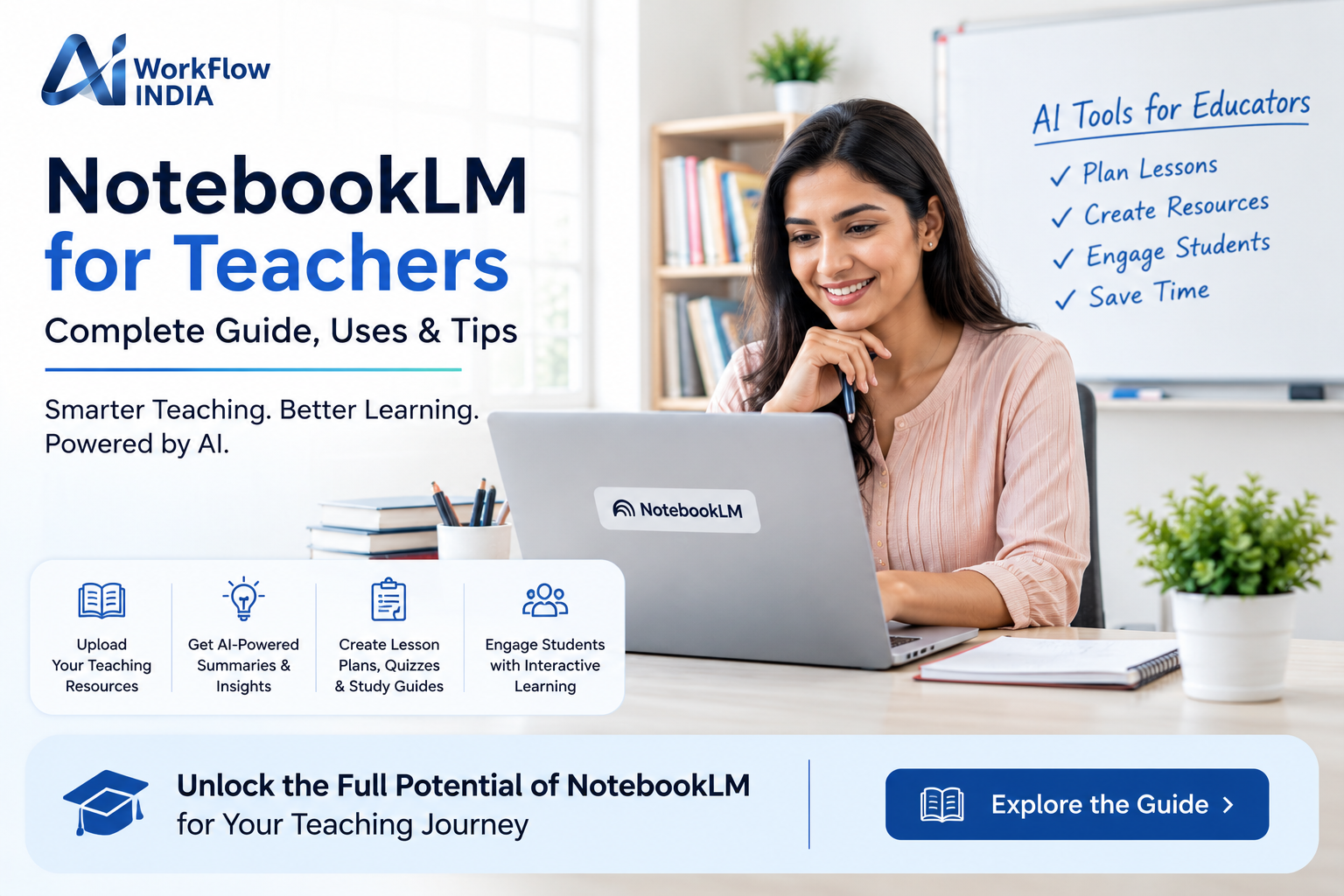
NotebookLM for Teachers: Complete Guide

Imagine having a personal AI research assistant that reads all your teaching materials, answers your questions instantly, and even creates study guides for your students. Sounds like a dream, right? Well, that dream is now reality with Google’s NotebookLM.
If you’re a teacher looking to save time, boost student engagement, and bring innovative technology into your classroom, NotebookLM education applications might just change how you work forever. This complete guide walks you through everything you need to know about using this powerful tool in your teaching practice.
What Is NotebookLM and Why Should Teachers Care?
NotebookLM is a free AI-powered research and note-taking tool developed by Google. Unlike generic AI chatbots, NotebookLM works directly with your uploaded documents. It reads, understands, and helps you interact with your own materials.
Think of it as a super-smart teaching assistant that never sleeps. You upload lesson plans, textbooks, research papers, or curriculum guides. Then you can ask questions, generate summaries, create study materials, and explore ideas—all grounded in your actual content.
For educators, this means:
- No more spending hours re-reading dense textbooks
- Instant creation of differentiated learning materials
- Quick answers about specific curriculum content
- Personalized study guides generated in seconds
- More time for what matters most—teaching students
Getting Started with NotebookLM in Education
Ready to dive in? Setting up NotebookLM is surprisingly simple. Here’s how to begin your journey with this AI-powered teaching tool.
Step 1: Access NotebookLM
Visit notebooklm.google.com and sign in with your Google account. Most schools already use Google Workspace, so you likely already have access. The interface is clean, intuitive, and designed for everyday users—not tech experts.
Step 2: Create Your First Notebook
Click “New Notebook” to create a fresh workspace. Name it something descriptive like “Grade 8 Science Unit” or “AP History Sources.” Each notebook can hold multiple sources and becomes your dedicated research space for that topic.
Step 3: Upload Your Teaching Materials
This is where the magic happens. NotebookLM accepts various source types:
- Google Docs
- PDF files
- Text files
- Google Slides
- Web URLs
- YouTube videos (with transcripts)
- Audio files
Upload your curriculum documents, textbook chapters, or research articles. The AI immediately begins processing and understanding your content.
Practical NotebookLM Applications for Classroom Use
Now let’s explore the exciting ways teachers are using NotebookLM for education purposes. These real-world applications will transform your daily workflow.
Creating Differentiated Learning Materials
Every classroom has students at different reading levels. With NotebookLM, you can instantly generate simplified summaries of complex texts. Upload a challenging article, then ask the AI to explain it at a fifth-grade reading level. Within seconds, you have accessible content for struggling readers.
Want to challenge your advanced students? Ask NotebookLM to create extension questions or deeper analysis prompts based on the same material.
Generating Study Guides and Review Materials
Before exams, students need quality review materials. Upload your unit materials into NotebookLM and request:
- Key vocabulary lists with definitions
- Chapter summaries highlighting main concepts
- Practice questions based on uploaded content
- Flashcard sets for memorization
- Concept maps showing relationships between ideas
The best part? Everything generated comes directly from your actual teaching materials, ensuring perfect alignment with what you taught.
Lesson Planning and Curriculum Development
Planning lessons takes countless hours. NotebookLM speeds up this process dramatically. Upload curriculum standards, textbook chapters, and supplementary resources. Then ask the AI to suggest lesson activities, discussion questions, or project ideas that address specific learning objectives.
Teachers integrating AI tools effectively often see significant time savings. If your school is considering broader implementation, exploring AI teacher training for schools can help ensure all educators maximize these powerful tools.
Research and Professional Development
Staying current with educational research matters, but who has time to read every journal article? Upload multiple research papers into NotebookLM and ask for comparative summaries. The AI identifies common themes, conflicting findings, and practical implications for classroom practice.
The Audio Overview Feature: A Game-Changer for Education
One of NotebookLM’s most innovative features is Audio Overview. This tool transforms your uploaded documents into podcast-style audio discussions. Two AI hosts have a natural conversation about your content, making complex topics more accessible and engaging.
Teachers use Audio Overviews to:
- Create listening materials for auditory learners
- Provide accessible content for students with reading difficulties
- Generate engaging introductions to new units
- Offer review materials students can listen to while commuting
- Support English language learners with spoken explanations
Students often find these AI-generated discussions more engaging than reading dense text. The conversational format helps concepts stick better in memory.
Best Practices for Using NotebookLM in Schools
To maximize the educational benefits of NotebookLM, follow these proven strategies.
Start with Quality Sources
NotebookLM’s output quality depends entirely on input quality. Upload well-organized, accurate materials. Avoid sources with formatting issues, as they may confuse the AI.
Ask Specific Questions
Vague questions get vague answers. Instead of asking “What’s important here?” try “What are the three main causes of the Civil War according to these sources?” Specific prompts yield specific, useful responses.
Verify AI-Generated Content
While NotebookLM grounds responses in your uploaded documents, always review generated materials before sharing with students. Check for accuracy, appropriate reading level, and alignment with your teaching goals.
Teach Students to Use It Responsibly
NotebookLM can be a powerful student tool too. Teach learners how to use it for research and studying—not for avoiding actual learning. Emphasize that it’s a thinking partner, not a homework machine.
Addressing Common Concerns About AI in Education
Many teachers have legitimate questions about bringing AI tools into classrooms. Let’s address the most common concerns.
Privacy and Data Security
NotebookLM is developed by Google and follows their privacy standards. However, avoid uploading documents containing student personal information. Stick to curriculum materials, general resources, and anonymized content.
Academic Integrity
Some worry that AI tools encourage cheating. The solution isn’t avoiding these tools—it’s teaching appropriate use. NotebookLM in education works best as a learning support, not a replacement for student thinking. Set clear expectations about how and when students may use AI assistance.
Will AI Replace Teachers?
Absolutely not. NotebookLM handles information processing tasks, but teaching requires human connection, emotional intelligence, and adaptive decision-making that AI cannot replicate. These tools make teachers more effective, not obsolete.
Future of NotebookLM and Educational Technology
Google continues developing NotebookLM with new features regularly. Recent updates have improved source handling, response quality, and collaboration options. Educational institutions increasingly recognize AI literacy as an essential skill for students and teachers alike.
Schools investing in teacher AI training now position themselves ahead of the curve. As these tools evolve, educators with foundational AI skills will adapt more easily to new developments.
Take Your Teaching to the Next Level
NotebookLM represents a significant shift in how teachers can manage information, create materials, and support student learning. By understanding its capabilities and limitations, you can harness this technology to work smarter—not harder.
Start small. Create one notebook for an upcoming unit. Upload your materials and experiment with different questions. Notice what saves time and what improves your teaching. Then expand from there.
The teachers who thrive in coming years will be those who embrace AI as a collaborative tool while maintaining the human elements that make education meaningful. NotebookLM is your invitation to join that future—starting today.
Frequently Asked Questions
Is NotebookLM free for teachers to use?
Yes, NotebookLM is currently free to use with any Google account. Teachers can access all features without paying subscription fees. Google may introduce premium features in the future, but the core functionality remains available to educators at no cost.
Can students use NotebookLM for their schoolwork?
Students can use NotebookLM as a study and research tool. It works well for organizing research sources, creating study guides, and understanding complex materials. Teachers should establish clear guidelines about appropriate use and emphasize that it supports learning rather than replaces genuine effort.
What types of documents work best with NotebookLM?
NotebookLM works best with clearly formatted text documents, PDFs, and Google Docs. Avoid heavily image-based materials or documents with complex formatting. Clean, text-rich sources produce the most accurate and useful AI responses for educational purposes.
“`
—
**For Rank Math Meta Post:**
**Title:** NotebookLM for Teachers: Complete Guide to AI-Powered Education
**Meta Description:** Discover how NotebookLM transforms teaching with AI-powered tools. Learn practical applications, best practices, and tips for using NotebookLM in education effectively.
**Meta Keywords:** NotebookLM education, NotebookLM for teachers, AI teaching tools, NotebookLM classroom, Google NotebookLM guide, AI in education, teacher AI tools